We have now reached 500 views on our blog. We hope to continue growing at an increasing rate, getting more views daily. If you have any suggestions for reviews, you may e-mail James at his address in the post below, or you may e-mail myself at markdh92@gmail.com.
Thanks,
Mark
Tuesday, October 20, 2009

Sunday, October 18, 2009
Computers are a pain.
Well I about had my Clip+ review done, when all of the sudden my Macbook decided to shut down and erase my file, computers are great aren't they? So the Clip+ review will be up within the next week. So just hold on, it'll be here soon. In the meantime, read some other posts, or send me an email at: jmanwestesy@gmail.com with any thoughts, comments, or questions.
Wednesday, October 14, 2009
Picked up the Sansa Clip+

-James
Friday, October 9, 2009
How to install Rockbox Using the Rockbox Utility
Okay so you like the looks of Rockbox, but the question is "how do I install it?" Well here is a set of simple step-by-step instructions on how to install Rockbox on your MP3 player using the Rockbox Utility.
Download the Rockbox Utility: Download the Rockbox utility for your platform (Windows, Linux, or Mac) from: http://www.rockbox.org/wiki/RockboxUtility by scrolling down to the download section. This program is needed to install Rockbox on your player.
Decompress the .Zip file: When you downloaded the Utility you should have gotten a .zip file. Decompress this file to any desired location (Use a Program like WinRAR, or WinZip), just don't forget where because you will need it for the next step.
Open the Rockbox Utility:Open the file from the location that you decompressed it to.
Set up the Rockbox Utility: Once the Rockbox Utility opens it will prompt you to select your device. To do this simply plug in your player and click "Autodetect", or select your player from the list manually. Clicking "Autodetect" will tell the Rockbox Utility to find your device on the computer and automatically select it from the list.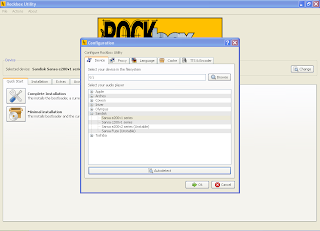
(click to enlarge)
Download the Rockbox Utility: Download the Rockbox utility for your platform (Windows, Linux, or Mac) from: http://www.rockbox.org/wiki/RockboxUtility by scrolling down to the download section. This program is needed to install Rockbox on your player.
Decompress the .Zip file: When you downloaded the Utility you should have gotten a .zip file. Decompress this file to any desired location (Use a Program like WinRAR, or WinZip), just don't forget where because you will need it for the next step.
Open the Rockbox Utility:Open the file from the location that you decompressed it to.
Set up the Rockbox Utility: Once the Rockbox Utility opens it will prompt you to select your device. To do this simply plug in your player and click "Autodetect", or select your player from the list manually. Clicking "Autodetect" will tell the Rockbox Utility to find your device on the computer and automatically select it from the list.

(click to enlarge)
Install Rockbox:Then from the menu under the quick start tab you can select the "Complete installation" and the "Minimal installation". The Complete installation will install the bootloader ( the thing that tells the player to open Rockbox.), Rockbox, and all the extras (the things that make Rockbox great). The minimal installation only installs the bootloader and Rockbox, no extras. I recommend the Complete installation because the extras are what makes Rockbox great.
Install extras: After installing Rockbox you can now install themes, fonts, games, etc. The games, themes and such are located under the extras tab.
Unistallation: If for some crazy reason you decide that you want to uninstall Rockbox, the Rockbox Utility will do that for you too. Just go to the unistallation tab and click complete uninstall to completely rid your player of it.
Read the Manual for more help: The Rockbox Utility not only does it help you install Rockbox, it's extras, and uninstall Rockbox, but it also includes a manual that can be found under the manual tab of the Utility menu. This manual will provide any further needed information.
Unistallation: If for some crazy reason you decide that you want to uninstall Rockbox, the Rockbox Utility will do that for you too. Just go to the unistallation tab and click complete uninstall to completely rid your player of it.
Read the Manual for more help: The Rockbox Utility not only does it help you install Rockbox, it's extras, and uninstall Rockbox, but it also includes a manual that can be found under the manual tab of the Utility menu. This manual will provide any further needed information.
Monday, October 5, 2009
200 Views!

We have Reached 200+ views! We are so happy for this, we didn't think we would get that many hits that fast. Please take time to read some of the Reviews and comment on them. Also please take the time to comment on THIS post and quick just tell us how you stumbled upon our Blog. Comments are open to anyone so please type away. We need to find out how people are stumbling upon our site so we can figure out where our "advertising" is working, and where it isn't. Help us help you. Much Obliged,
James
Sunday, October 4, 2009
Rockbox: The Open Source Jukebox (Review)

Do you ever find your self saying, “I don't like the looks of my MP3 Players UI (User Interface)?” Or, “I wish that my Player had more features, and was more customizable?” Well here is the answer to all of those questions. Yes and no.
Before I get into any details, Rockbox runs well on these players, has a complete manual and is supported by the installer:
*Apple: 1st through 5.5th generation iPod, iPod Mini and 1st generation iPod Nano
(not the Shuffle, 2nd/3rd/4th gen Nano, Classic or Touch)
*Archos: Jukebox 5000, 6000, Studio, Recorder, FM Recorder, Recorder V2 and Ondio
*Cowon: iAudio X5, X5V, X5L, M5, M5L, M3 and M3L
*iriver: iHP100 series, H100 series, H300 series and H10 series
*Olympus: M:Robe 100
*SanDisk: Sansa c200 series, e200 series and e200R series (not the v2/AMS models)
*Toshiba: Gigabeat X and F series (not the S series)
Unstable ports
Rockbox runs on these players, but is incomplete, less usable or has problems that limit it to advanced users:
*Cowon: D2
*Olympus: M:Robe 500
*Samsung: YH-920 and YH-925
*SanDisk: Sansa e200 v2 (AMS) and Sansa Fuze V1
Unusable ports
Work has begun on porting Rockbox to these players, but much remains before they are usable:
*Toshiba Gigabeat S, Cowon iAudio 7, Creative ZVM, Logik Dax, Meizu M6, Samsung YH820
Philips GoGear HDD1600, HDD1800, HDD6300 and SA9200, Onda VX747 and VX767,
Tatung Elio, Apple iPod Nano 2G, Sandisk Sansa m200, c100, Clip v1 and c200v2
What is it, and Why use it?
“ 'Rockbox is an open source firmware replacement for a growing number of digital audio players. It has been in development since 2001 and receives new features, tweaks and fixes every day to provide you with the best possible music listening experience. Rockbox aims to be considerably more functional and efficient than your device's stock firmware while remaining easy to use and customizable. It is a goal to not only offer a wide range of functionality, but where possible make sure that this functionality is presented in a consistent manner that is easy to learn and use. It is written by users, for users. ' ” A Quote Directly from Rockbox.org/wiki/whyrockbox
Positives:
Rockbox is full of many things that add a plus to the player that they are on.
-Rockbox allows for you to make, install, or get other's themes and install them onto your player.
(Themes can be downloaded from: http://themes.rockbox.org/ )
Example of a Theme menu:

(This example is the theme titled: Wide cabbie
Submitter:
Jonas Häggqvist
Description:
This is a mod of Cabbie 2.0 by Marc Guay and Johannes Voggenthaler, with a number of changes. Mainly a far larger font, but also 168x84 album art, which I create by merging album art with an artist picture from last.fm. You could also use it to show front and back cover. It looks fine with square album art as well.)
Submitter:
Jonas Häggqvist
Description:
This is a mod of Cabbie 2.0 by Marc Guay and Johannes Voggenthaler, with a number of changes. Mainly a far larger font, but also 168x84 album art, which I create by merging album art with an artist picture from last.fm. You could also use it to show front and back cover. It looks fine with square album art as well.)
-It allows the ability to play Gameboy and Gameboy Color ROMs ( a ROM is a digital copy of the game see this article for further information: http://en.wikipedia.org/wiki/ROM_image )
-Plugins such as a calculator, Movie Viewer (MPEG-1, MPEG-2), Text Viewer/editor, Rock Paint, Calender, Stopwatch, and many more. (For Complete list visit: http://www.rockbox.org/wiki/WhyRockbox)
-Once you have Rockbox installed on your MP3 Player you can still switch back and forth from Rockbox and the Original Firmware.
-File View
-Is Constantly being updated, and has great user support.
-Very Customizable
Negatives:
-It could void your warranty
-You need to know what you are doing before you install, or bad things could happen (Very low probability)
Overall Rockbox is the best alternative to your Original firmware if you are looking for a Customizable, great looking, easy to use, free, and feature packed open source firmware, Rockbox is for you. Check out Rockbox.org for even more info on rockbox and its many features. (A how to install Rockbox Tutorial will be posted very soon)
Thursday, October 1, 2009
100 Views
We have now hit 100 views on our blog. Although this may seem like a minuscule amount, it is a large step for us in our young blogging careers. As traffic increases, and more blog posts are put out, we hope to continue expanding our blogging horizons to more than just mp3 players. As traffic increases, we hope to increase our blogging output. So, tell your friends, and we thank you for your continued patronage to our blog.
- Mark
- Mark
Subscribe to:
Posts (Atom)
